API Response Beautifier: Format, Validate, and Minify JSON and XML, Free Online Tool (2026)
API Response Beautifier
Paste any raw JSON or XML API response. Instantly format, validate, and minify it.
Raw API responses are hard to read. A single-line blob of JSON with hundreds of nested fields is almost useless when you are trying to debug an issue quickly. The free API response beautifier tool above fixes that instantly, with no signup required.
What Is an API Response Beautifier?
An API response beautifier is a tool that takes raw, unformatted API output and converts it into something clean, readable, and properly indented. Whether you are working with JSON from a REST endpoint or XML from a legacy SOAP service, the tool restructures the data without changing its content.
Developers use it every day. You paste the response from Postman, your browser’s network tab, or a curl command directly into the tool. You get back a formatted version you can actually scan with your eyes. It also works the other way, compressing formatted data back into a single minified line when needed.
How to Use This Tool
- Choose your format. Use the Format dropdown to select JSON or XML. API response beautifier auto-detects the format as you type, so in most cases you will not even need to change this.
- Set your indent size. Pick 2 spaces, 4 spaces, or tab indentation from the Indent dropdown depending on your team’s code style.
- Paste your raw API response. Drop your output into the input box at the top. It can be minified, partially formatted, or completely messy. The tool handles all of it.
- Click Beautify. The formatted output appears instantly in the output box below, along with a line count, character count, and approximate token count.
- Validate without formatting. If you only want to check whether the data is valid JSON or XML without reformatting it, click Validate Only. You will see a clear pass or fail message.
- Minify when needed. The Minify button removes all whitespace and compresses the output to one line. Useful when you need to store a response in a variable or send it as part of a request body.
- Copy the result. Click Copy Output to put the formatted text on your clipboard.
Why Readable API Responses Matter in 2026
APIs are everywhere now. The average web application calls dozens of external services, from payment processors to analytics platforms to AI models. Debugging across all of those integrations requires reading a lot of raw data fast.
Poorly formatted responses slow you down. Studies from developer productivity research consistently show that code comprehension time drops significantly when data is visually structured. A developer staring at an unformatted 800-character JSON string takes two to three times longer to spot a missing field than someone looking at properly indented output.
Speed matters even more when you are under pressure. A production bug at 2 AM is not the moment to mentally parse a flat JSON blob. Readable data means faster fixes.
JSON vs XML: Which Format Are You Working With?
Most modern APIs return JSON. It is lightweight, easy to parse in any language, and natively supported in JavaScript. If you are consuming a REST API from services like Stripe, Twilio, or OpenAI, your responses will almost always be JSON.
XML still shows up frequently in older enterprise systems, government data services, and SOAP-based APIs. Payment gateways like PayPal’s older Payments API and many healthcare data systems still use XML by default. Banks, insurance platforms, and ERP systems tend to lean on XML too.
This tool handles both. If you paste an XML document starting with a declaration or an opening tag, it auto-detects the format and switches the selector. You do not need to configure anything manually.
The indentation options matter differently for each format. In JSON, 2-space indentation is popular in JavaScript projects. Four spaces is common in Python. In XML, tab indentation is frequently used in enterprise environments that follow older formatting standards.
Common Mistakes to Avoid
- Pasting headers along with the response body. API responses from tools like curl often include HTTP headers at the top. The beautifier only processes the body, so remove headers like “Content-Type: application/json” before pasting.
- Assuming minified output is invalid. A valid JSON or XML document does not need whitespace. Do not confuse minified data with broken data. Use the Validate Only button to check correctness without reformatting.
- Copying partial responses. If your API response got cut off mid-stream, the JSON or XML will be structurally incomplete. The tool will flag a parse error in that case. Always confirm you have the full response before pasting.
- Editing the output instead of the input. The output box is read-only on purpose. If you need to make changes to the data, edit the input, then click Beautify again to regenerate the output.
Formatting raw API data by hand wastes time you could spend actually fixing problems. Paste your response into the API response beautifier above and get clean, readable output in under a second.
Related Tools on ToolsStackPro:
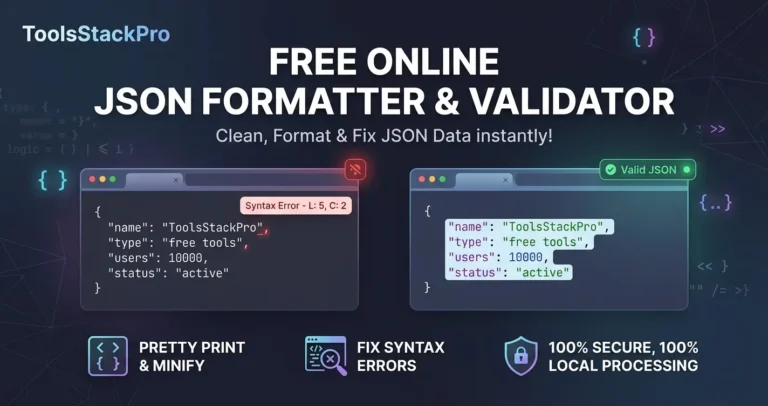
- Free Online JSON Formatter & Validator – Clean, Format & Fix JSON Data 2026
- JSON to CSV Converter: Switch Formats Fast With This Free Online Tool (2026)
- Keyword Density Checker — Analyze & Optimize Content Fast (Free Tool 2026)
- HTML to Markdown Converter Free Online – Real-Time Formatting 2026
- Password Strength Checker: Protect Your Accounts From Modern Bruteforce Attacks Free Online Tool (2026)
- Unix Timestamp Converter: Turn Timestamps Into Readable Dates Free Online Tool (2026)
- CSS Gradient Generator: Create Beautiful Backgrounds Instantly, Free Online Tool (2026)