

How to Connect GetResponse to WordPress Without a Plugin (Fast & Free 2026)
“Disclosure: This post contains affiliate links. If you click through and make a purchase, I may receive a commission at no additional cost to you. I only recommend tools I trust.”
If you want to connect GetResponse to WordPress without a plugin, you are in the right place because site speed is everything in 2026. These days, everyone is overloaded with plugins for WordPress, like plugins for SEO, email marketing, and even speed. But the result is that your website slows down, which degrades the user experience.
If you’re using GetResponse, can I tell you a secret? You don’t need to use any official or third-party plugins. You can connect your site via code, which will maintain high speeds and reduce security risks.
Let us learn step by step how to connect GetResponse to WordPress without a plugin in 2026.
Why You Should Avoid GetResponse WordPress Plugins?
Many people ask us this question: “Why should we code when plugins are available?” The answer is simple:
- Site Speed: Every plugin loads extra CSS and JavaScript files onto your site, whereas without plugins, apps only insert necessary code.
- Plugin Conflicts: Sometimes a plugin conflicts with another plugin, causing your site to crash.
- Security: The fewer plugins you use on your site, the fewer avenues for hackers are blocked.
- Update Hassle: Plugins need to be updated frequently, as once the code is overwritten, it will keep slowing down.
Step 1: Create Your Lead Capture Form in GetResponse
First of all, you have to go to your GetResponse account and design a form.
- Log in to your GetResponse dashboard.
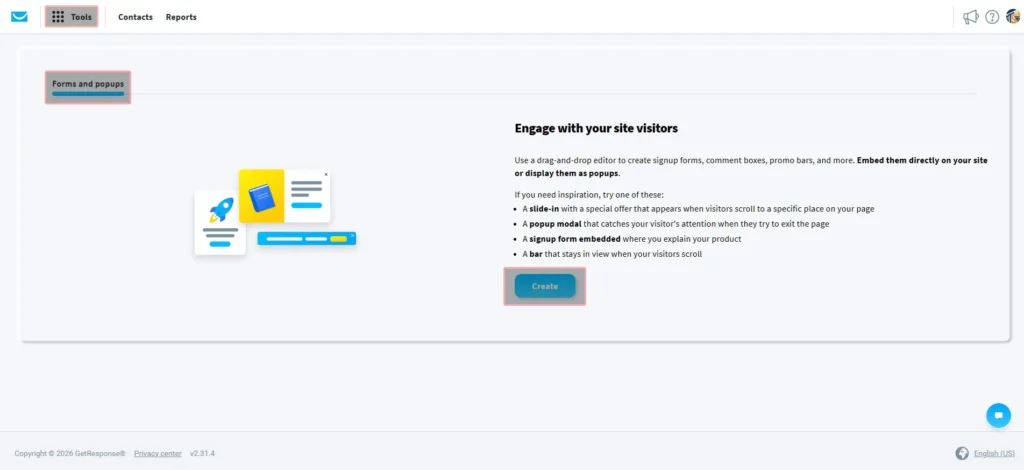
- Go to the Tools menu and select Forms & Popups.
- Click Create Form. Here you’ll find two options: “List Builder Wizard” (easy templates) or “Plain HTML.” I recommend using the Wizard to make the design look better.
- Choose your favorite template and edit it.
- When the design is ready, click the Publish button in the top right.
Step 2: Copy the “I Will Install the Form Myself” Code
After clicking Publish, GetResponse will ask you how you want to install the form.
- Here you will see three options. You need to select the first option: “I will install the form myself”.
- The JavaScript code will appear in a box below. Copy this entire code.
Important Tip: If you want the form to take less time to load, you can also use the “Web Connect” code, but this JS snippet is best for beginners when you connect GetResponse to WordPress without a plugin.
Step 3: Connect GetResponse to WordPress Without a Plugin (3 Methods)
This is where the real work begins. You have three options. Choose whichever one suits you best.
Method A: Using a Custom HTML Widget (Best for Sidebar/Footer)
If you want the form to appear on the side of your website or in the footer:
- Go to the WordPress dashboard.
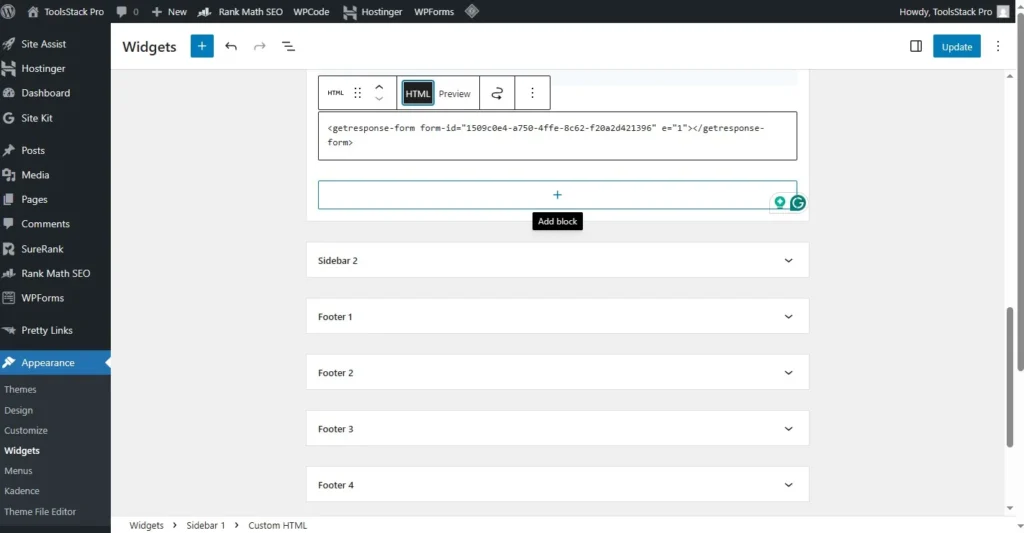
- Click Appearance > Widgets.
- Click the “+” (Add Block) icon and search for “Custom HTML”.
- Drag this block to the sidebar or footer and paste the copied code there.
- Click the Update button.
Method B: Adding Form Inside a Specific Blog Post
If you want a form to appear in the middle of your article when people read it:
- Edit the post where you want to place the form.
- Click the “+” sign between paragraphs.
- Select the Custom HTML block and paste the code.
- Save or update the post.
Method C: Using the Theme Customizer (For Pop-ups & Tracking)
If you created a pop-up in GetResponse, it should appear on every page.
- Go to Appearance > Customize.
- Many themes have an option for “Header/Footer scripts.”
- If your theme (like Astra or GeneratePress) doesn’t allow this, you can simply add a “Custom HTML” widget to the “Footer.” Since the footer is on every page, the pop-up will work everywhere.
Step 4: Activating GetResponse Web Connect (The Pro Step)
Tracking is very important in 2026. GetResponse’s “Web Connect” feature tells you which users are doing what on your site.
- In GetResponse, go to Tools > Web Connect.
- Add your website’s URL and copy the “Tracking Code” from there.
- Paste this code into your WordPress footer (via the custom HTML widget).
- This eliminates the need for a plugin and allows you to use advanced automation (e.g., page visit triggers).
Troubleshooting: Common Issues and Fixes
Sometimes, even after entering the code, the form doesn’t appear. Don’t worry, try this:
- Cache Issue: If you’re using WP Rocket or LiteSpeed Cache, clear your site’s cache.
- Ad-Blockers: Browser ad-blockers sometimes block marketing scripts. Try disabling them and checking.
- SSL Error: Check that your site is on https. GetResponse’s new forms only work properly over secure connections.
Conclusion: Final Verdict
In digital marketing, “less is more.” The fewer plugins you use, the faster and smoother your site will run. Using GetResponse with WordPress without any plugins is not only easy, but it’s a professional approach to connect GetResponse to WordPress without a plugin.
Now you’re done! Go ahead and create your first form without installing any plugins. If you have any problems, let us know in the comments below. We’re here to help.
FAQs
Q1: Will this method slow down my site? No! When you connect GetResponse to WordPress without a plugin, This method is much lighter than a plugin because it only loads when needed.
Q2: Do I need to install new code for every new form? Yes, each form has a unique code. If you’re using pop-ups, just one tracking code is enough.
Q3: Will this work with Elementor? Absolutely! Elementor has an “HTML” widget. You just paste the code in there, and it works perfectly.
If you’re using System.io and want to migrate, read our article with the complete guide for 2026: How to Migrate from Systeme.io to GetResponse Fast & Easy (2026 Ultimate Guide)






One Comment